> ## Documentation Index
> Fetch the complete documentation index at: https://docs.knowkr.com/llms.txt
> Use this file to discover all available pages before exploring further.
# Objectives
> Learn all about how KnowKR objectives help to keep your team aligned.
 ## What are Objectives in KnowKR?
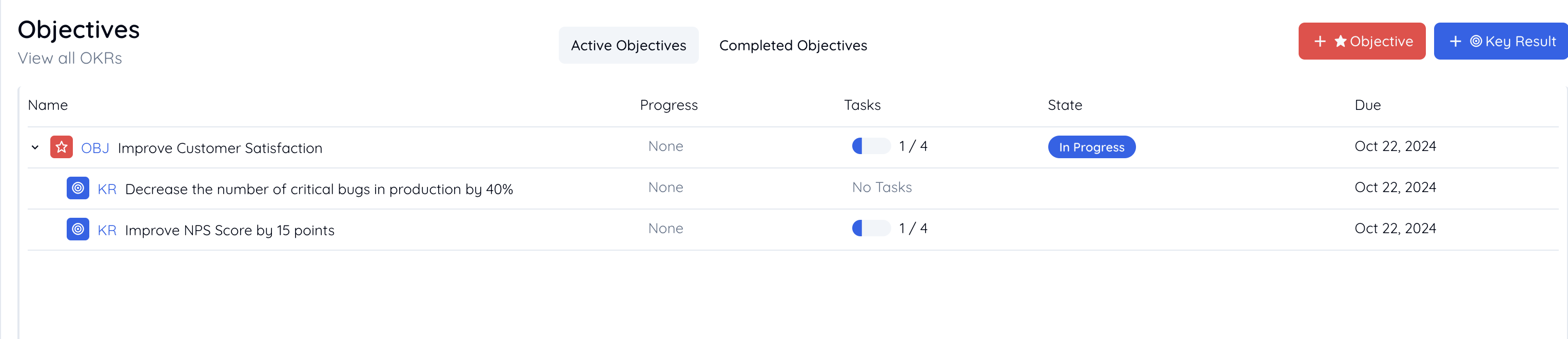
Objectives are qualitative goals that help to keep your team or organization aligned. You can think of Objectives as the big picture goals that you want to achieve.
Key Results can be assigned to Objectives to help you quantify the progress towards the Objective.
## How to set Objectives
Navigate to the Objectives page on the KnowKR Dashboard and click on the *Create Objective* button.
Fill in the details for the Objective, such as the title, description, end date, etc.
Click on the *Create* button to create the Objective.
## How to edit Objectives
To edit Objectives in KnowKR, you need to have either created the Objective, be an admin, or be an Objective approver.
Navigate to the Objectives page on the KnowKR Dashboard and click on the Objective that you want to edit.
On the Objective page, click *Edit* in the dropdown menu with the three dots.
Edit the details of the Objective, such as the title, description, and due date.
Click on the *Update* button to save the changes to the Objective.
## Completing Objectives
When you've completed an objective, you can mark it as complete by clicking on the "Complete" button on the objective page. This will update the status of the objective to "Completed" and will notify all members associated with the objective that it has been completed.
You must be the objective creator, an admin or objective approver to mark an objective as completed.
## What are Objectives in KnowKR?
Objectives are qualitative goals that help to keep your team or organization aligned. You can think of Objectives as the big picture goals that you want to achieve.
Key Results can be assigned to Objectives to help you quantify the progress towards the Objective.
## How to set Objectives
Navigate to the Objectives page on the KnowKR Dashboard and click on the *Create Objective* button.
Fill in the details for the Objective, such as the title, description, end date, etc.
Click on the *Create* button to create the Objective.
## How to edit Objectives
To edit Objectives in KnowKR, you need to have either created the Objective, be an admin, or be an Objective approver.
Navigate to the Objectives page on the KnowKR Dashboard and click on the Objective that you want to edit.
On the Objective page, click *Edit* in the dropdown menu with the three dots.
Edit the details of the Objective, such as the title, description, and due date.
Click on the *Update* button to save the changes to the Objective.
## Completing Objectives
When you've completed an objective, you can mark it as complete by clicking on the "Complete" button on the objective page. This will update the status of the objective to "Completed" and will notify all members associated with the objective that it has been completed.
You must be the objective creator, an admin or objective approver to mark an objective as completed.