> ## Documentation Index
> Fetch the complete documentation index at: https://docs.knowkr.com/llms.txt
> Use this file to discover all available pages before exploring further.
# Invite Users
> Learn all about inviting user to KnowKR.
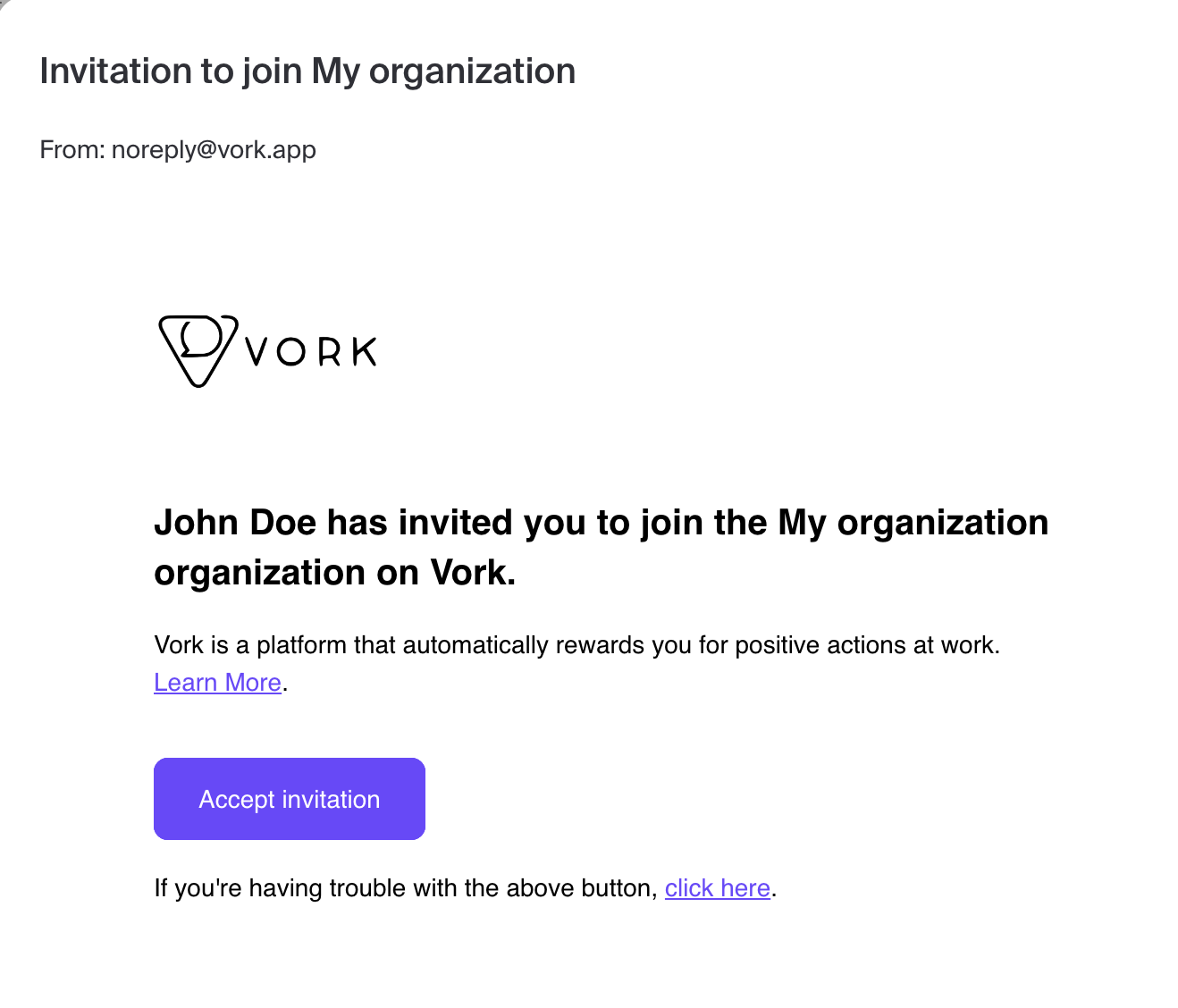
When you invite users, they will be sent an email invite to KnowKR. To avoid confusion it’s always suggested to notify users to expect an invite to the platform before invitation. Here’s an example of what the invite email will look like:
 #### Steps
1. Navigate to Admin > User Management.
2. Click on the add user icon (top right).
3. Select the **Upload CSV** tab if you would like to add multiple users at once.
Enter the user's name and email address. You can also optionally set their birthday and start date (they are used for automations).
1. Download the "invite users" CSV template.
2. Fill in the required fields, you may also add the optional fields (You can likely export this information from your HRIS system).
#### Steps
1. Navigate to Admin > User Management.
2. Click on the add user icon (top right).
3. Select the **Upload CSV** tab if you would like to add multiple users at once.
Enter the user's name and email address. You can also optionally set their birthday and start date (they are used for automations).
1. Download the "invite users" CSV template.
2. Fill in the required fields, you may also add the optional fields (You can likely export this information from your HRIS system).
**Note:** Ensure that the name follows the format of **"FirstName LastName"**
3. Upload the CSV file.